

Getting Started with Go
Go is a versatile programming language used for a range of applications including complex backends, web applications, and cloud native applications.
You can run Go on your computer using the following two methods:
-
Run Go online
-
Install Go on your computer
In this tutorial, you will learn both methods.
Run Go Online
To run Go code, you must have the Go compiler installed on your system. However, if you want to start immediately, you can use our free online Go compiler.
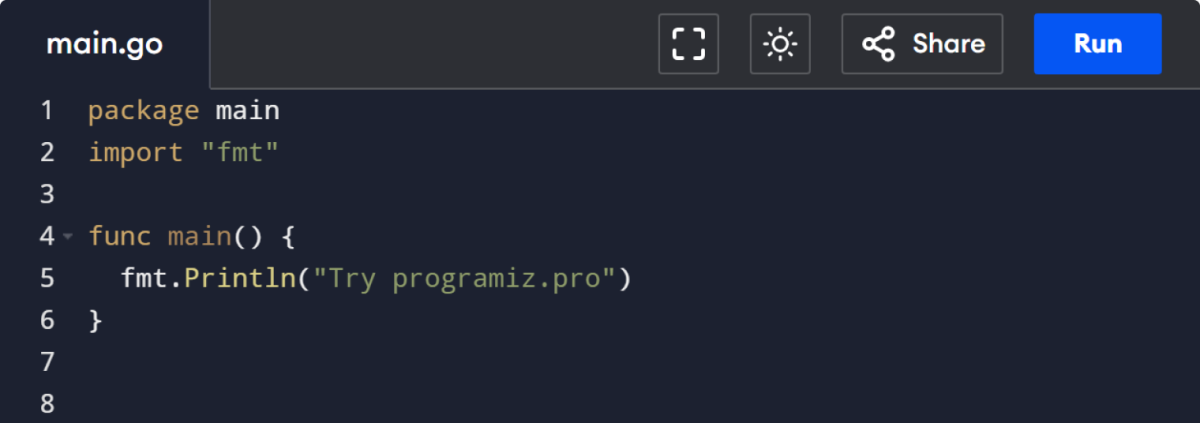
The online editor enables you to run Go code directly in your browser—no installation required.
Install Go on Your Computer
For those who prefer to install C# on your computer, this guide will walk you through the installation process on Windows, macOS, or Linux (Ubuntu).
To install Go on your Windows, just follow these steps:
-
Install VS Code
-
Check Go version
-
Download the Go Installer File
-
Run the Installer
-
Verify Your Installation
Here is a detailed explanation of each of the steps:
Step 1: Install VS Code
Go to the VS Code official website and download the Windows installer. Once the download is complete, run the installer and follow the installation process.
Click Finish to complete the installation process.
Step 2: Check Go Version
To build and run Go applications, you need Go installed on your Windows machine.
You can check if Go is already installed and verify the installed version by using the following command in the Command Prompt:
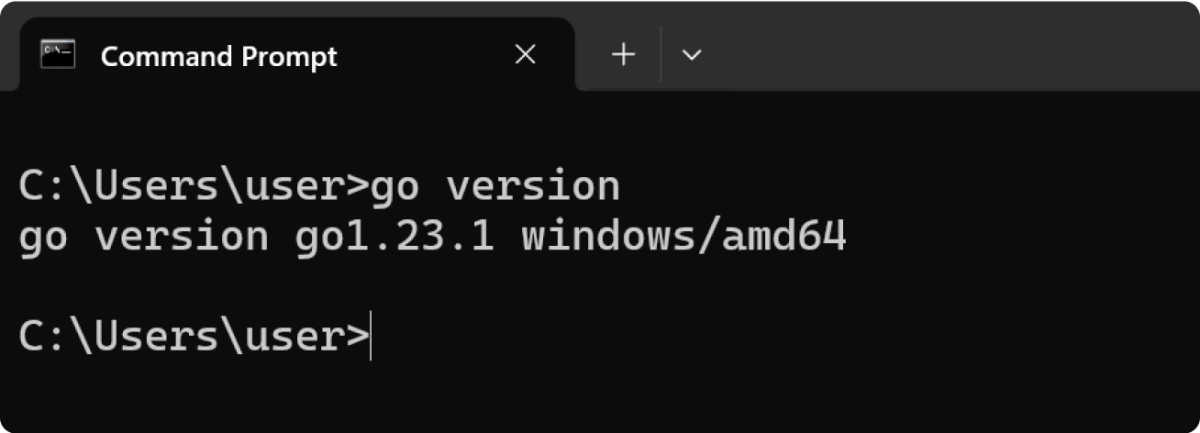
If the command returns a version, you have the Go installed; if not, proceed to download and install Go.
Step 3: Download the Go Installer File
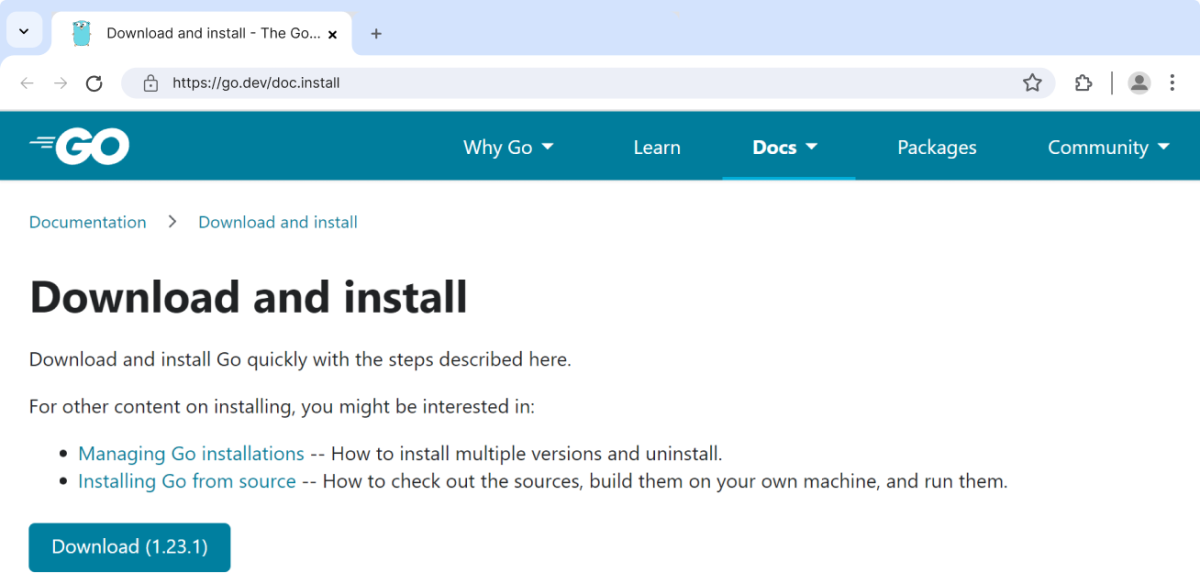
Visit the Go Download page and click on the download button, then choose the installer for Windows.
Simply click on the recommended download link to get the correct installer.
Step 4: Run the Installer
After the download is complete, look for the file you just downloaded. Double-click the file to open the installer.
A setup wizard pops up in the screen like in the following image,

Click on Next till your installation process starts.
Once the installation is complete, you will see this screen:
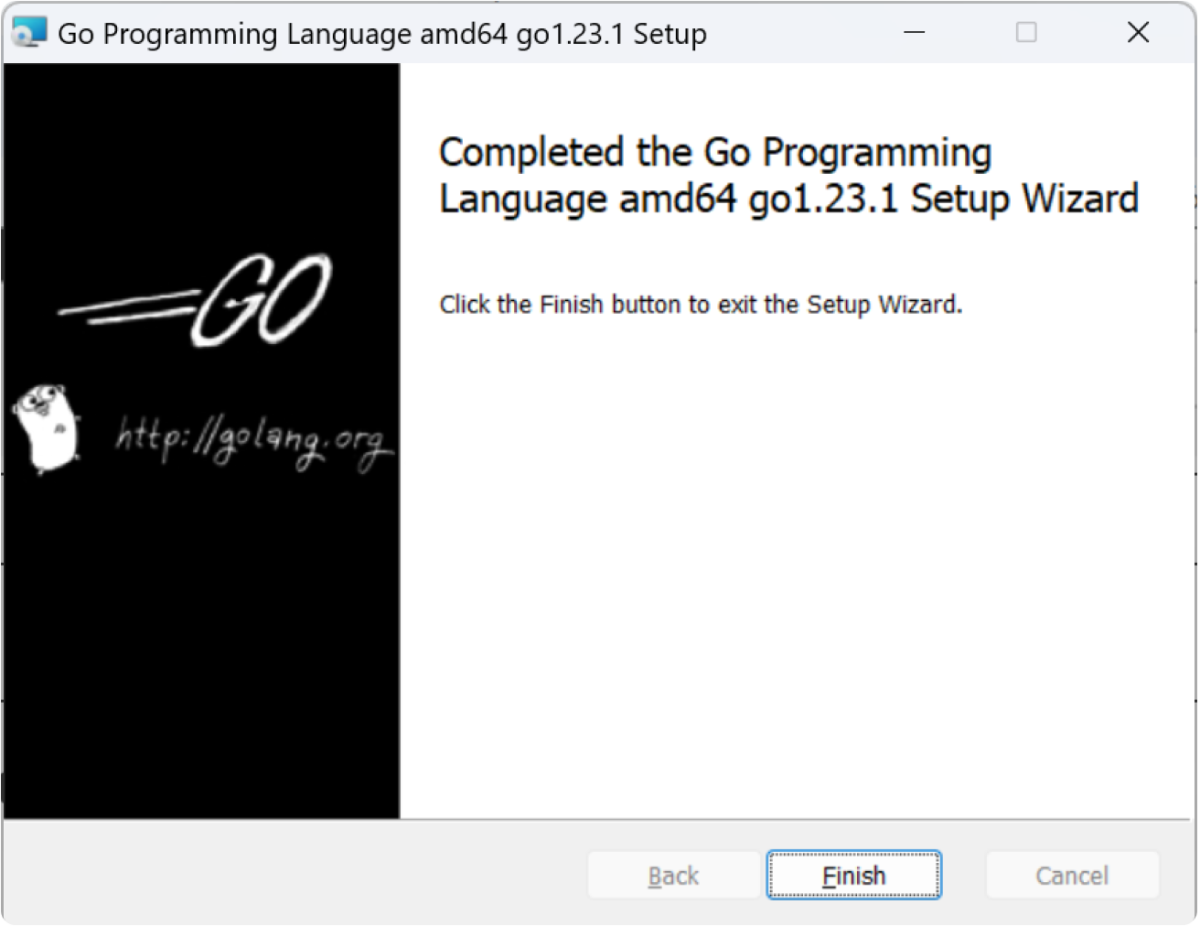
Click Finish to exit the installer.
Step 5: Verify Your Installation
Once the installation is complete, you can verify whether Go is installed correctly on your Windows machine by using the following command in the Command Prompt:
The version number might differ from the one above, depending on your installed version.
Now, you are all set to run the Go program on your device.
Run Your First Go Program
There are a few things you'll need to set up for running your first Go program.
-
Install the Required Extensions in VS Code
-
Create a Go file
-
Write Your Go Program
-
Run Your Program
Install the required Extensions in VS Code
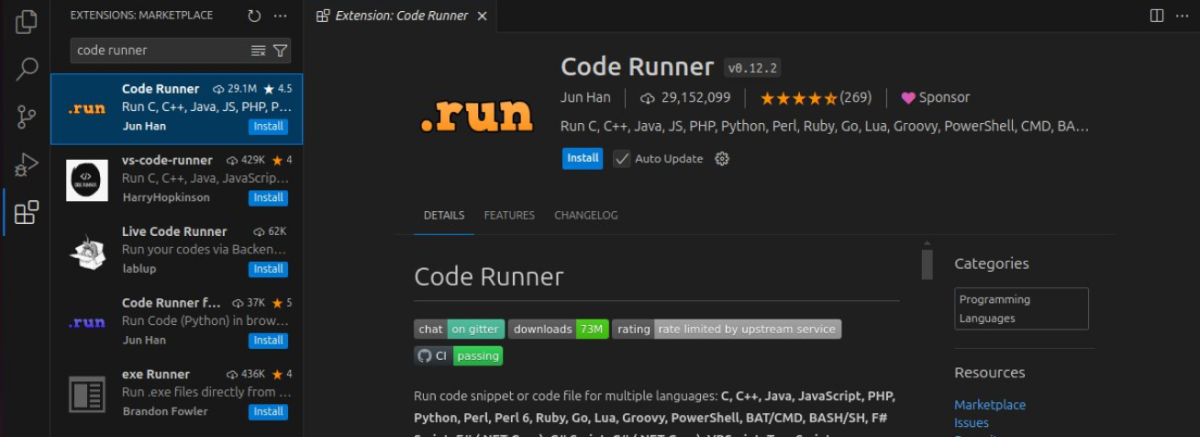
Before you begin coding, ensure that the Code Runner and Go extension is installed in VS Code.
Open VS Code and click on Extensions on the left sidebar. Search for Code Runner and click on Install. The Code Runner extension will allow you to run and execute Go code within VS Code.
Similarly install the Go extension,
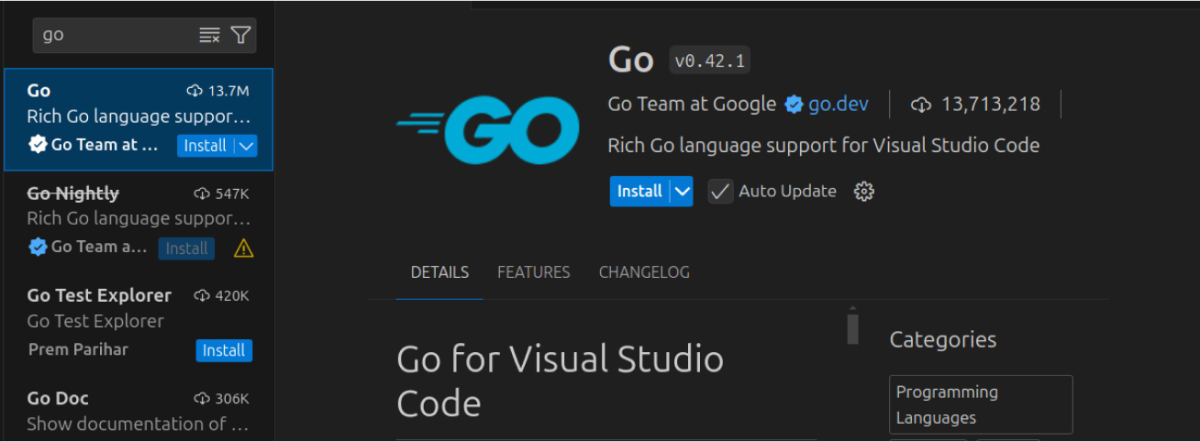
This extension provides Go language support, debugging, and more, helping you develop Go applications efficiently.
Create a Go File
In VS Code, Click on the File in the top menu and then select New File.
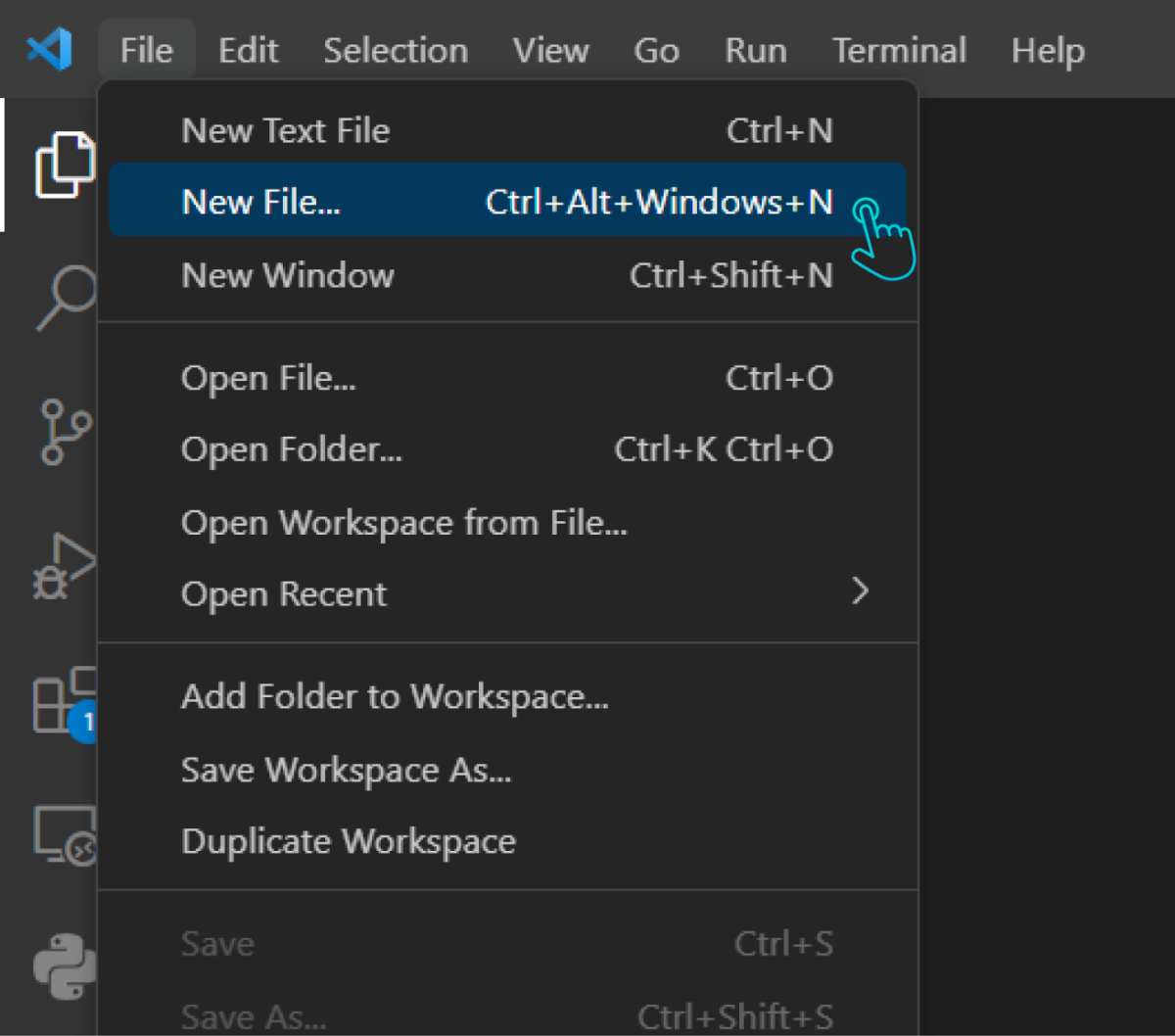
Then, save this file with a .go extension by clicking on File again, then Save As, and type your filename ending in .go. (Here, we are saving it as main.go).
Write Your Go Program
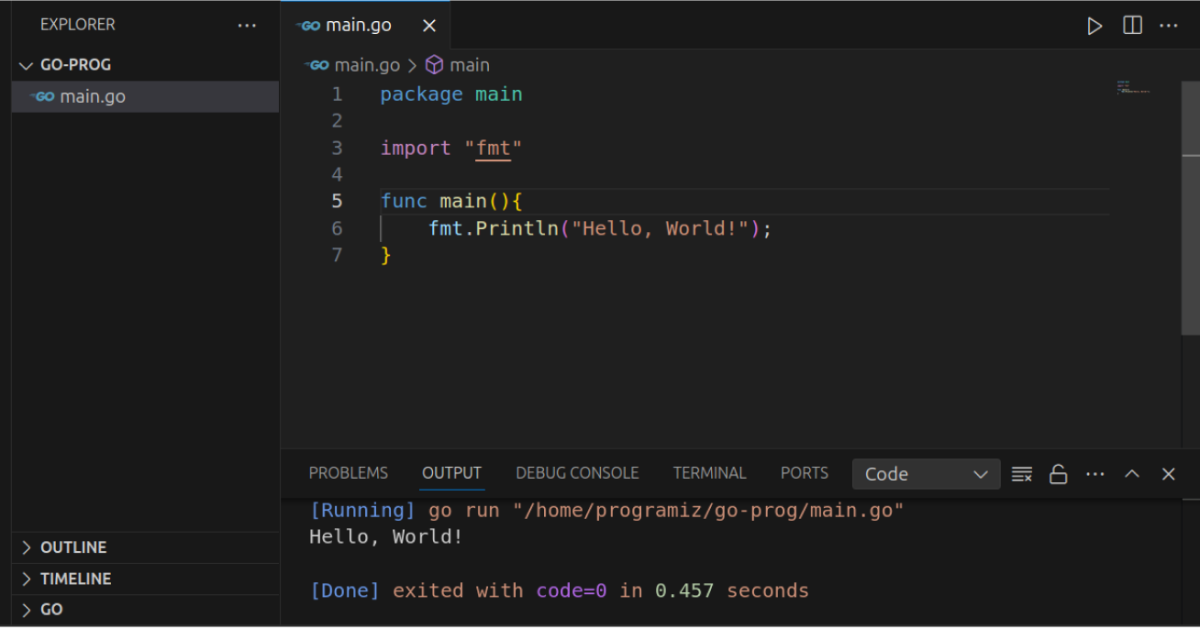
Now that you have created the file, it's time to start coding. Open the main.go file and write the following code:
Run Your Program
Now it's time to run your first Go program. Click the run button at the top right of the VS Code Window.
You should see Hello World! output to the console.
Now that you have set everything up to run the Go program on your computer, you'll be learning how the basic program works in Go in the next tutorial.